Paint Shop
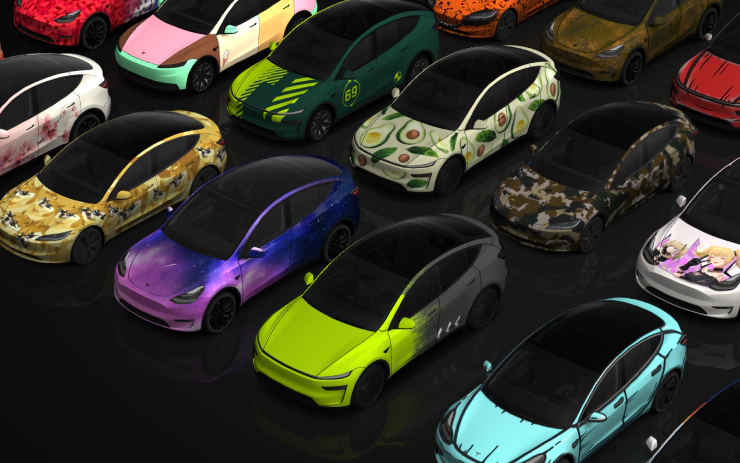
Paint Shop allows Tesla owners to upload their own designs and apply custom window tints, wraps, and license plates to the vehicle shown in the Tesla app and on the vehicle display.
What Is Paint Shop?
Paint Shop lets you customize the appearance of your Tesla’s 3D vehicle model using custom images.
Paint Shop was introduced with vehicle software 2025.44.25.1, released on December 8, 2025. Later updates added support for uploading custom wraps through the Tesla mobile app.
Owners can use Paint Shop to customize supported parts of the vehicle, including:
- Custom wraps
- Window tints
- License plates
These changes are visual only. Applying a custom design does not change the physical paint, windows, or license plate on your Tesla.
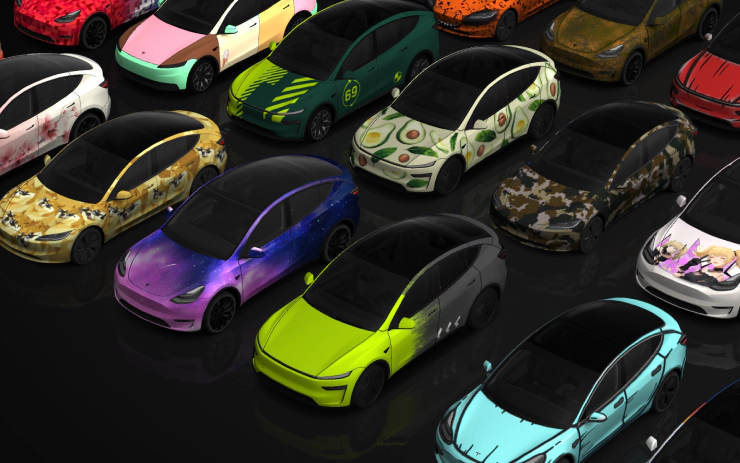
Personalize your Tesla avatar with window tints, custom wraps, and license plates. Use one of many …
Customize Your Wrap
Custom wraps can be uploaded either through the Tesla mobile app or using a USB flash drive.
Upload a Wrap From the Tesla App
Tesla added mobile app support for custom wrap uploads with Tesla App 4.59.0 and vehicle software 2026.26.
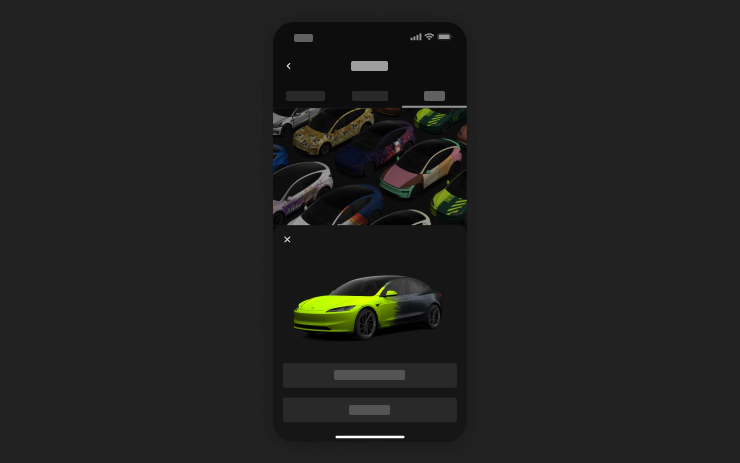
Use the Mobile App to upload custom wrap designs from images on your phone and send directly to your …
To upload a wrap from the Tesla app, the following requirements must be met:
- Tesla App 4.59.0 or later
- Vehicle software 2026.26 or later
- A Tesla with an AMD or Intel infotainment unit
- A configured phone key
- Available wrap storage
Being signed in to your Tesla account is not enough, a configured phone key is required.
To upload a design:
- Open the Tesla app.
- Select your vehicle.
- Open Creations.
- Select Wrap.
- Tap Upload.
- Select your compatible image.
- Preview the design and apply it.
Upload a Wrap Using USB
You can also transfer custom wraps to your Tesla using a USB flash drive.
- Format the USB drive using one of the following supported file systems:
- exFAT
- FAT32
- MS-DOS FAT
- ext3
- ext4
- Create a folder named
Wrapsat the root of the USB drive and place your custom wrap files inside it.
- NTFS is not supported.
- The USB drive must not contain map or firmware update files.
After connecting the USB drive to your Tesla:
- Open Toybox → Paint Shop on the vehicle touchscreen.
- Open Wraps.
- Select the wrap you want to apply.
The USB method allows you to add up to 10 custom wrap files. The Tesla mobile app has a separate allowance of up to 10 uploaded wraps, these are separate limits rather than one shared 10-file limit.
Custom Wrap File Requirements
Tesla requires custom wrap files to meet the following specifications:
| Requirement | Specification |
|---|---|
| Format | PNG |
| Resolution | 512x512 to 1024x1024 pixels |
| Maximum file size | 1 MB |
| Maximum filename length | 30 characters |
| Allowed filename characters | Letters, numbers, underscores, dashes, and spaces |
| Mobile app uploads | Up to 10 files |
| USB uploads | Up to 10 files |
Designs should be created using the Tesla custom-wrap template for the correct Tesla model and vehicle variant so that the artwork lines up correctly with the 3D vehicle.
Create Your Own Custom Wrap
If you want to create something more personal than the standard designs, you can create your own Paint Shop wrap.
A digital wrap changes the appearance of the 3D vehicle model shown in the Tesla app or on the vehicle touchscreen. It does not change the physical paint or wrap on your Tesla.
Because the vehicle shown in Paint Shop is a 3D model, you cannot simply use an ordinary photo as a wrap. The artwork needs to be positioned across the different surfaces of the vehicle. Tesla provides official templates for this purpose.
There are several ways to create a custom wrap, depending on how much control you want over the design.
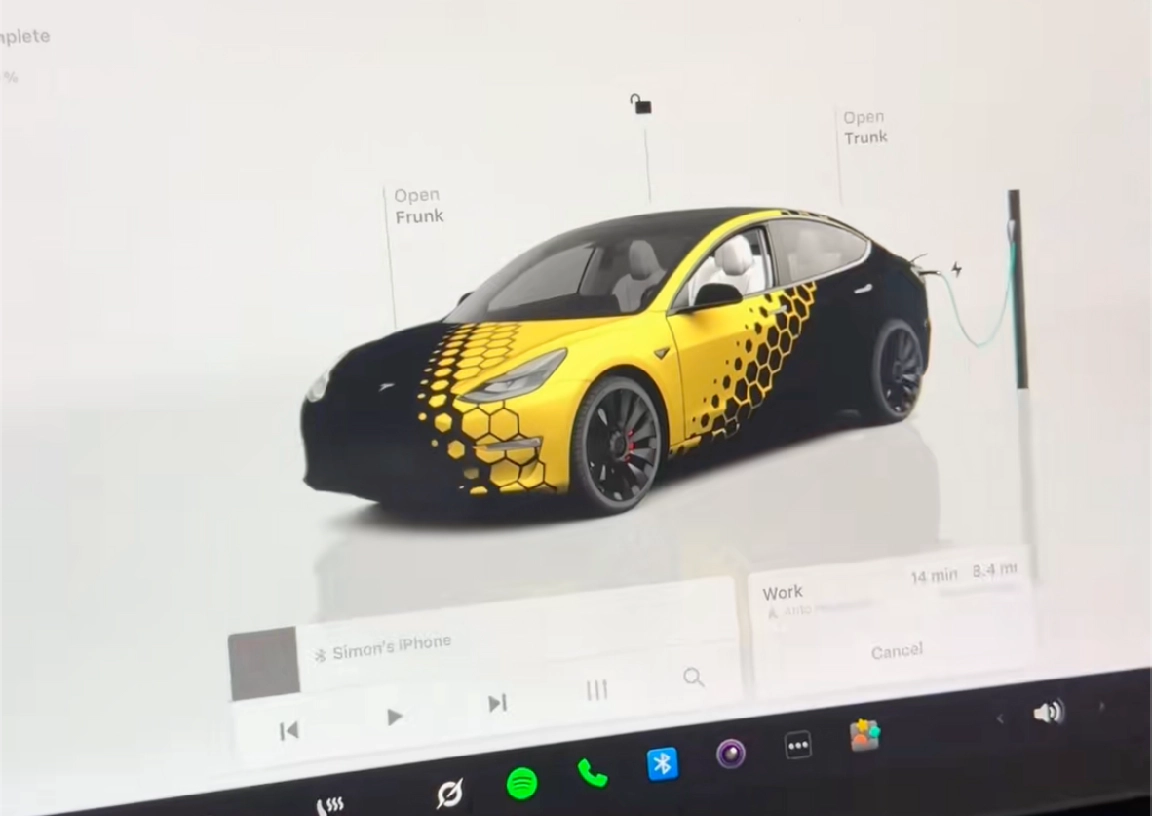
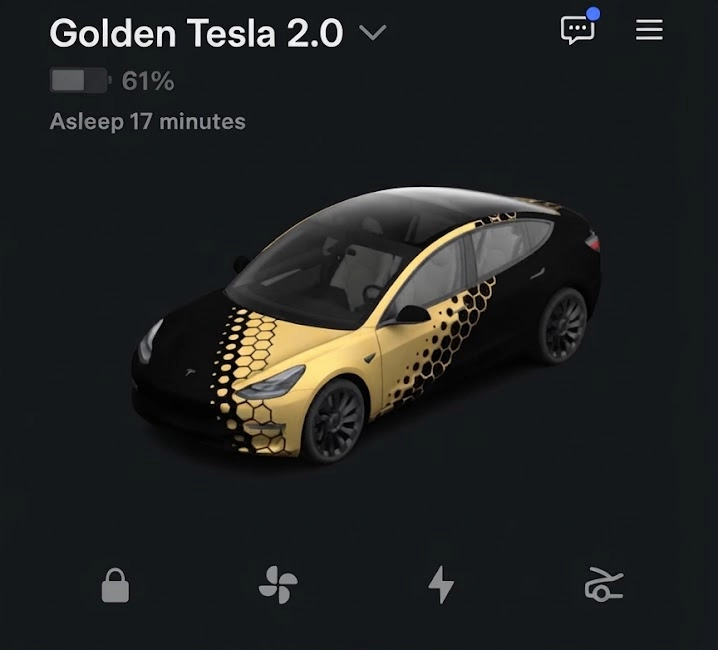
Method 1: Use Tesla’s Official Template and Photoshop
This method is suited to designers and anyone who wants precise control over the placement of images, text, logos, and other artwork.
Step 1: Download the Official Template
Open the Tesla custom-wrap template repository and find the folder for your Tesla model and vehicle variant.
- Select the folder for your vehicle.
- Open
template.png. - Download the template to your computer.
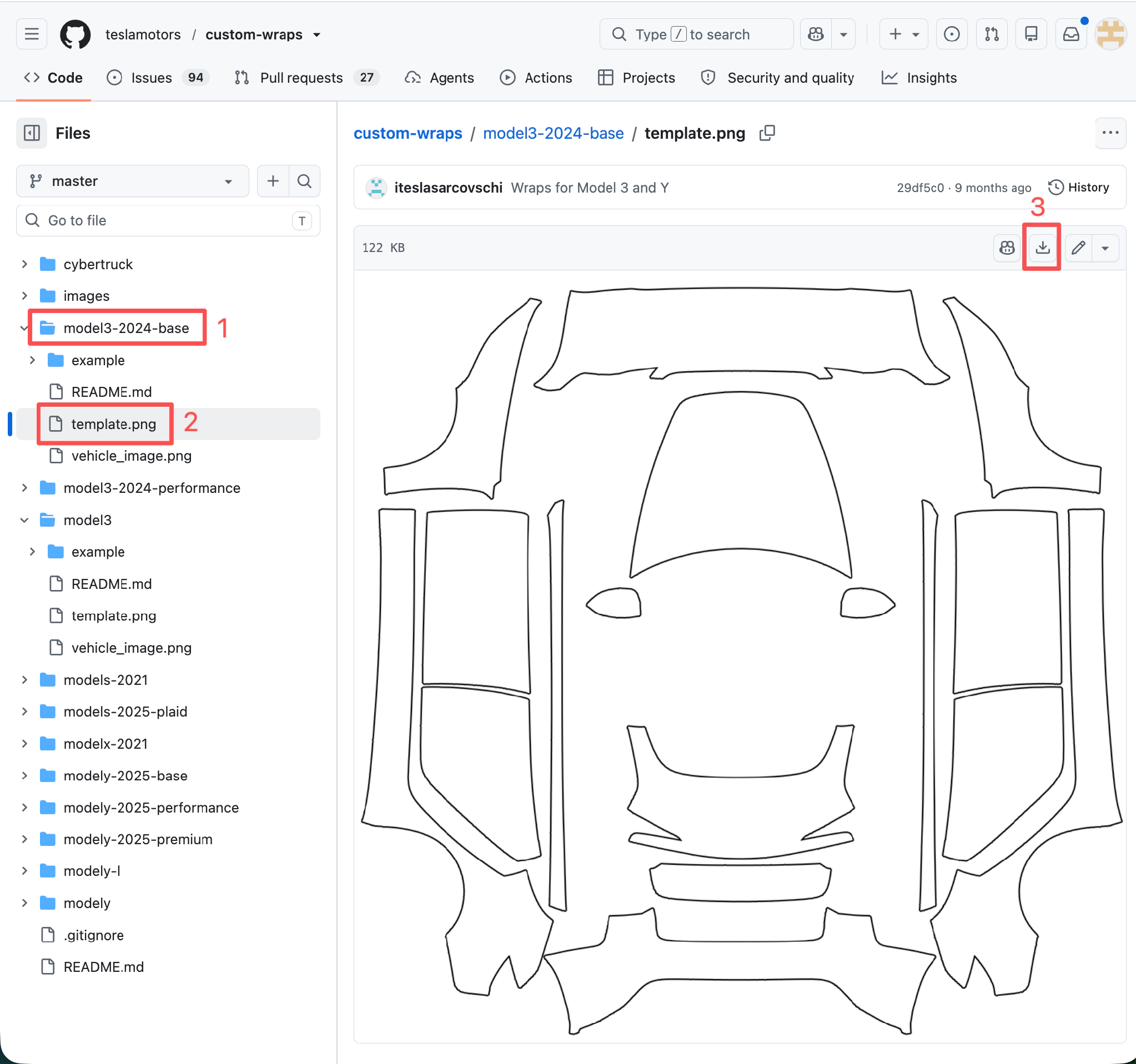
The template lays out the vehicle’s surfaces as a flat image. Different sections correspond to parts of the vehicle, such as the hood, doors, roof, and other body panels.
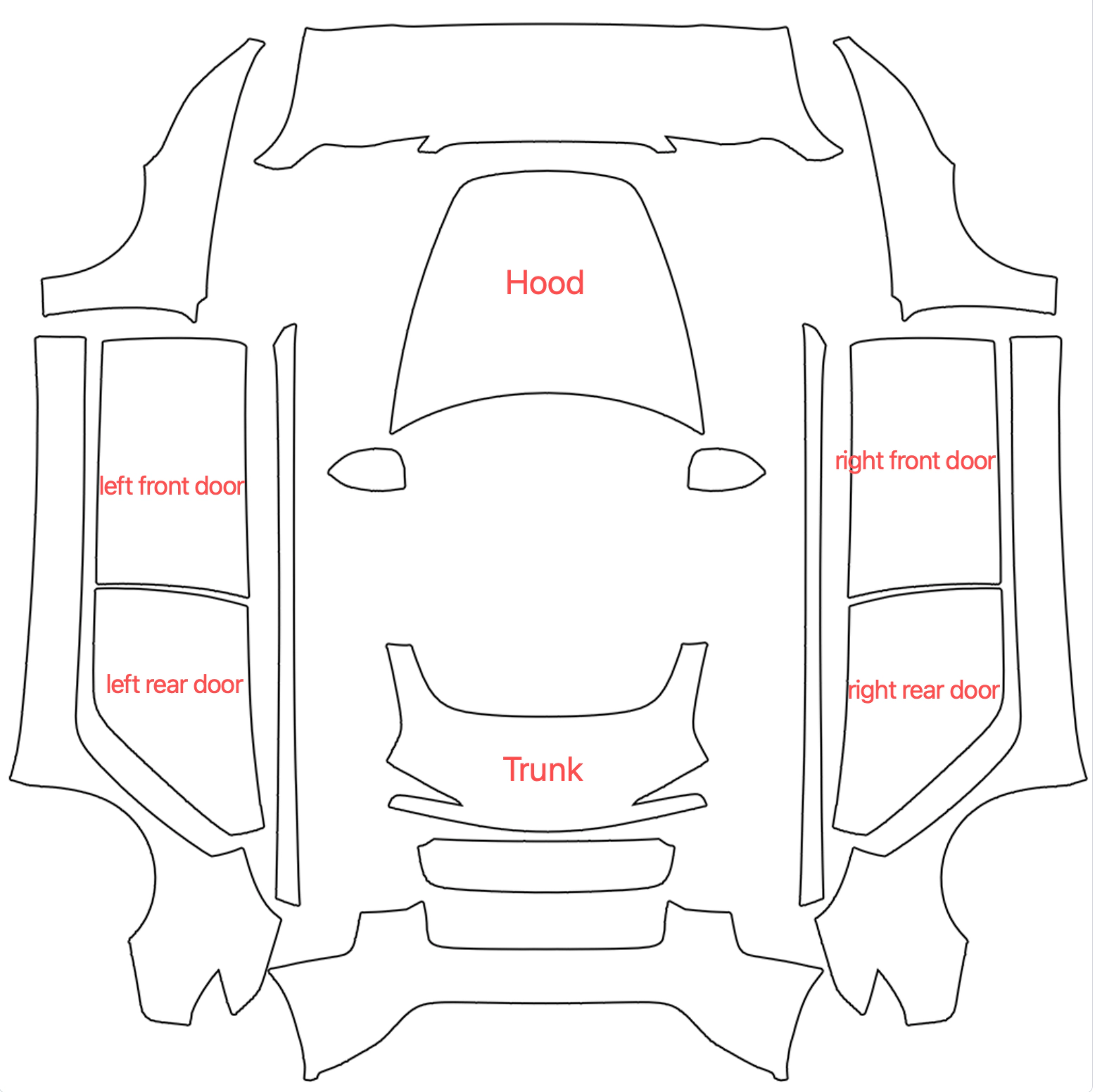
Always use the template for the correct Tesla model, model year, and vehicle variant. Different vehicles can have different body shapes and UV layouts, so artwork created for another vehicle may not line up correctly.
Step 2: Create Your Design
Open the downloaded template.png in Photoshop or another image editor that supports PNG files.
- Add your images, text, or other artwork.
- Place each element on the appropriate vehicle section.
- Resize, rotate, and position the artwork as needed.
- Export the finished design as a PNG.
The finished PNG can then be imported into Paint Shop using the Tesla app or a USB flash drive.
Method 2: Use Tesla Wrap Designer
Tesla Wrap Designer is an online tool that lets you select your Tesla model and vehicle variant, create a custom design, preview it on a 3D version of the vehicle, and export a Paint Shop-ready PNG.
It also includes a community gallery where you can browse existing designs for inspiration.
Step 1: Select Your Vehicle
Open the Tesla Wrap Designer editor and select your Tesla model and the correct vehicle variant.
Using the correct vehicle is important because different Tesla models and model years can have different body shapes and UV layouts.
Step 2: Start Your Design
You can create a design from scratch or start with an existing image.
Step 3: Export the Wrap
When the design is ready, export the finished design.
The exported file can then be uploaded through the Tesla app or transferred to the vehicle using the USB method described above.
Method 3: Use Tesla Wrap Studio
Tesla Wrap Studio is an online digital wrap editor based on Tesla’s official templates. It lets owners create custom designs with real-time 3D previews for the vehicle shown in the Tesla app and on the in-car display. It also offers a library of over 4,000 ready-made wraps to download for free.
This approach can be useful if you want to start with a photograph or generate a design rather than manually creating the complete artwork in an image editor.
Step 1: Open Tesla Wrap Studio
Open Tesla Wrap Studio and choose how you want to begin.
You can:
- Browse the gallery for existing wraps
- Open the Wrap Editor to create your own design
- Use an existing design as inspiration
Where supported, gallery designs can also be downloaded and used as a starting point.
Step 2: Generate a Design
You can either generate a design with AI or upload and arrange your own images.
Option A: If you do not have an image to start with, use AI Generate and describe the design you want to create.
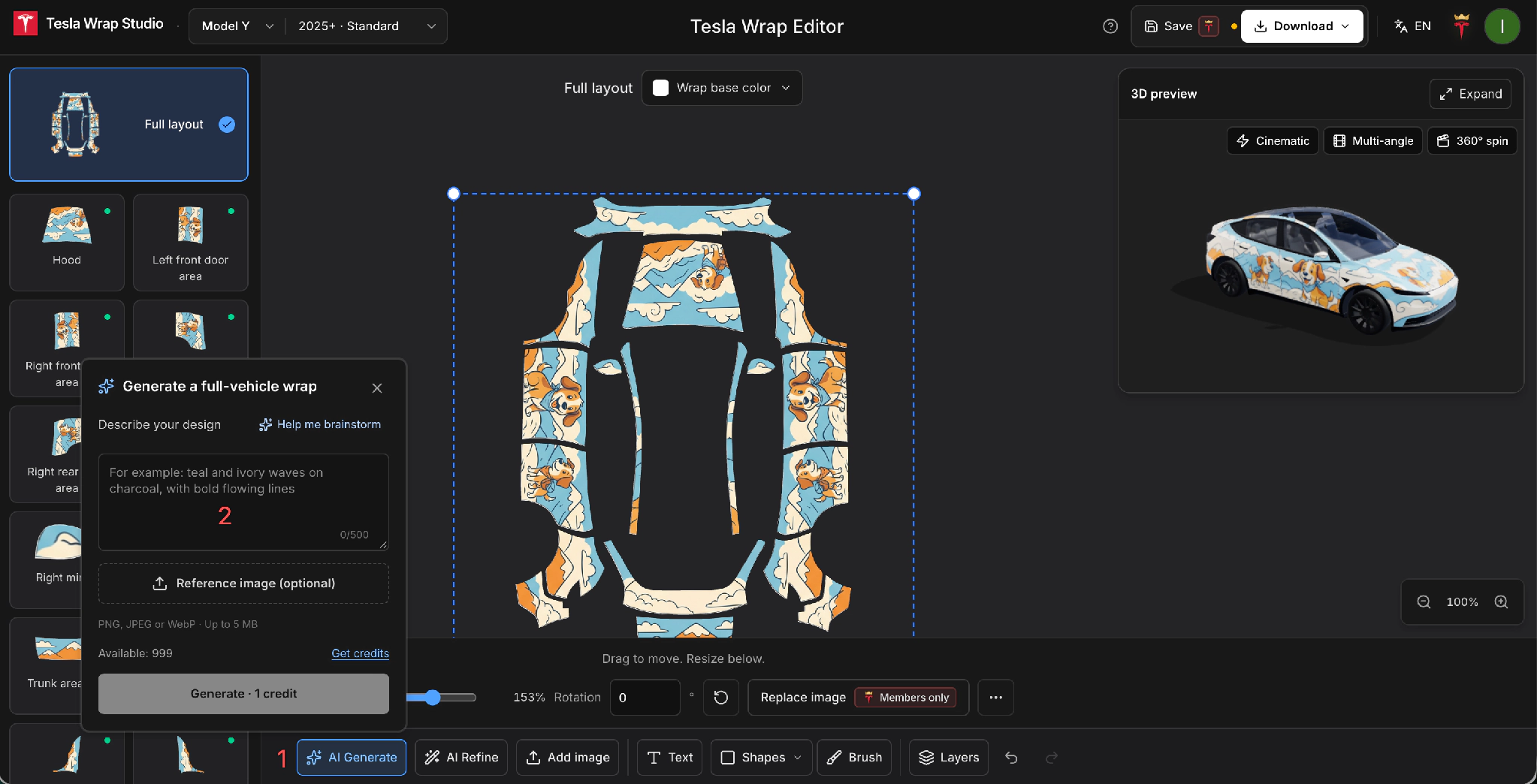
Option B: Upload and arrange a photo
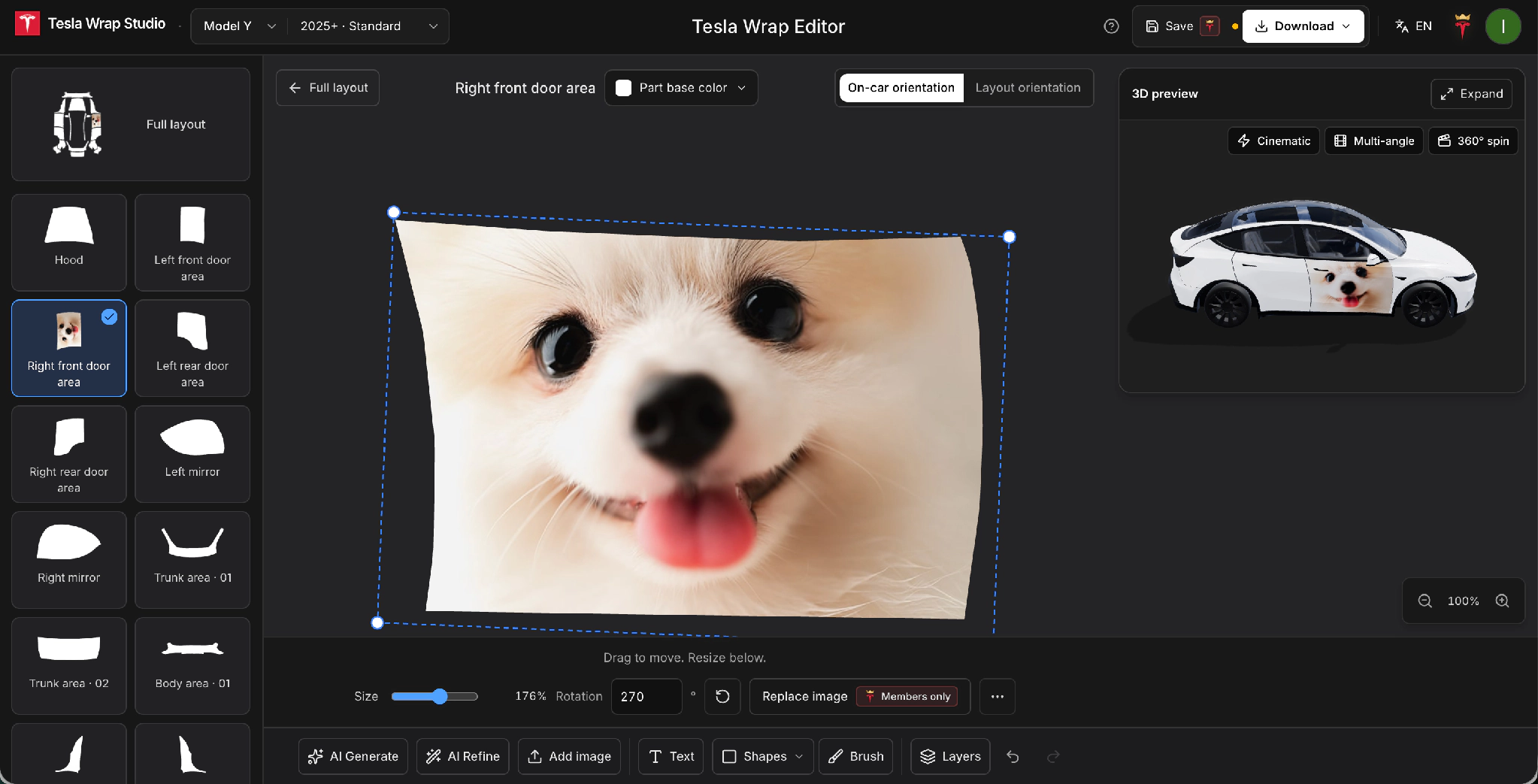
- Select the relevant vehicle section.
- Click Add image and upload your photo.
- Drag the image into position.
- Resize or rotate it as needed.
- Check the result in the 3D preview.
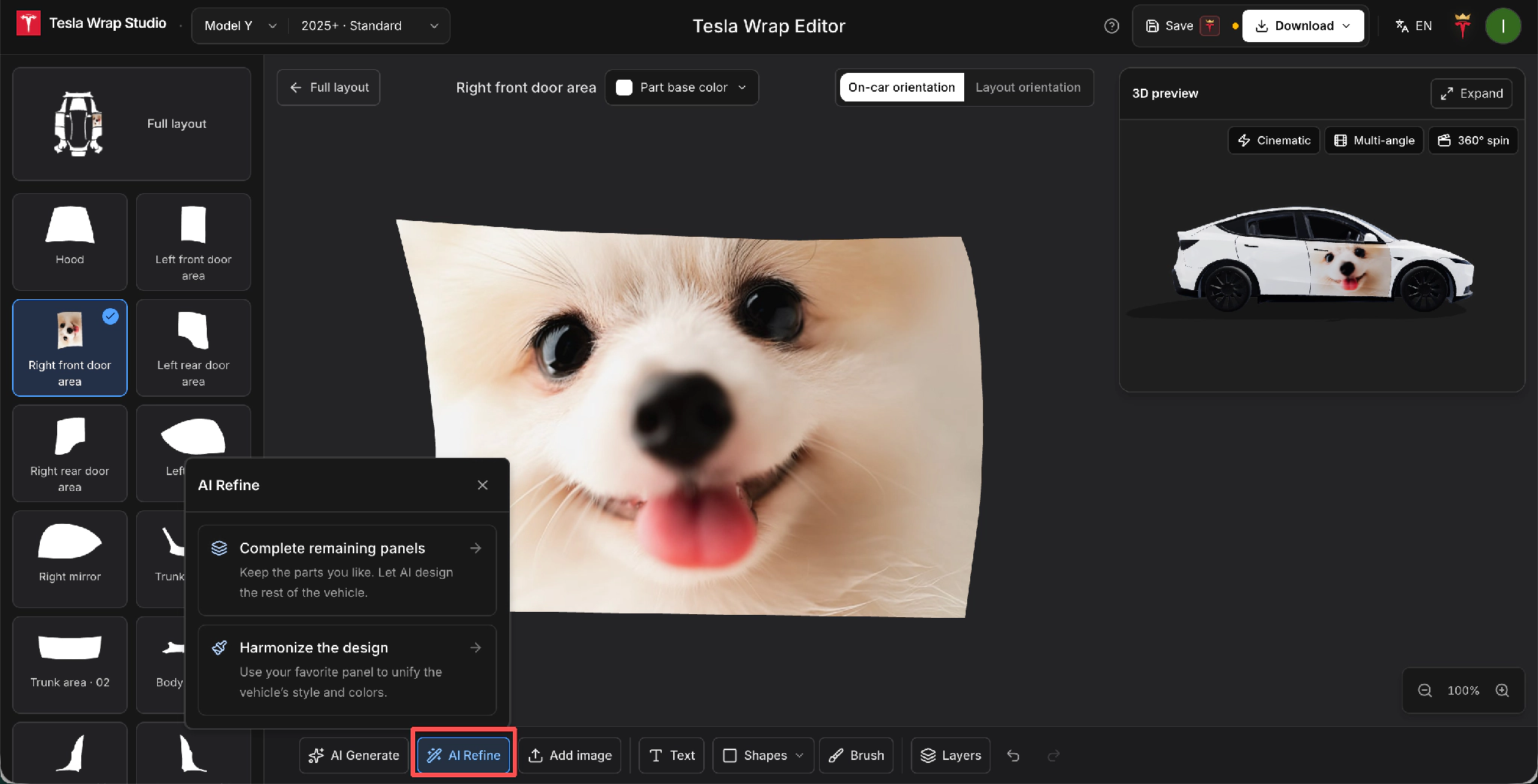
For example, you could place a photograph of a dog on one of the vehicle’s doors and adjust its position while viewing the result on the 3D model.
Step 3: Check the 3D Preview
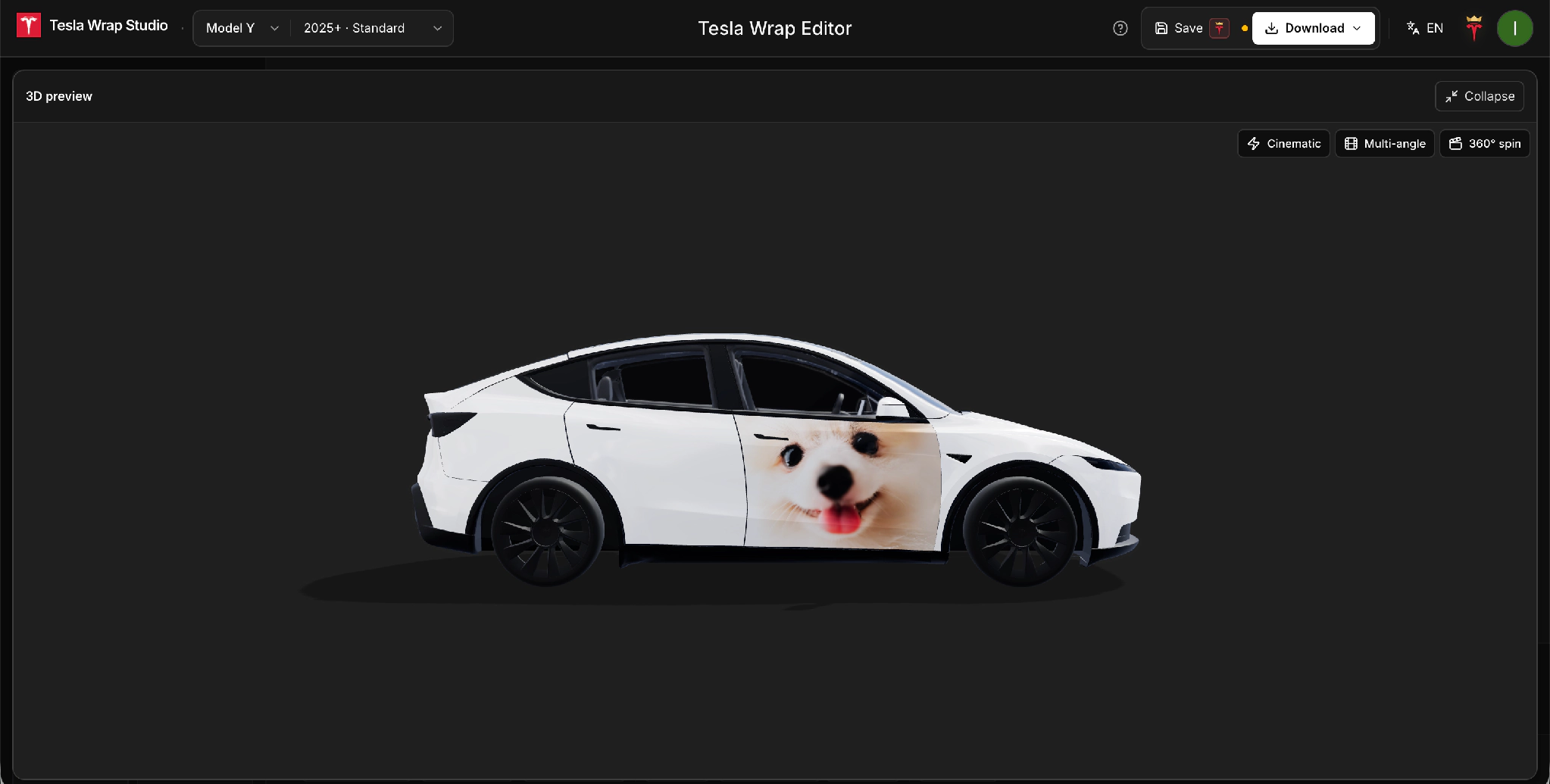
Use the 3D preview to inspect the design from different angles.
The editor provides an Expand option, use it for a larger view when checking the final result.
Look for:
- Incorrect image placement
- Distortion around curved surfaces
- Misalignment between body panels
- Areas of the vehicle that still need artwork
Step 4: Refine the Design
Tesla Wrap Studio also provides AI Refine tools for developing unfinished areas or making the artwork more consistent.
This step is optional. You can use the design as created without applying AI adjustments.
Step 5: Download the Paint Shop File
When the design is ready, use the download option and choose the Paint Shop PNG. The exported file can then be uploaded through the Tesla app or transferred to the vehicle using the USB method described above.
The editor also provides a separate 3D preview image. The preview image is intended for displaying or sharing the design and is not the file that should be imported into Paint Shop.
Customize Your Windows
Paint Shop lets you change the appearance of your Tesla’s windows with a custom tint.
To customize the window tint:
- On the vehicle touchscreen, open Toybox → Paint Shop.
- Select the Tint option.
- Choose the tint you want to apply to your vehicle.
You can use the available options to experiment with different looks and see how they appear on your vehicle.
The window tint shown in Paint Shop is a digital customization and does not physically tint your vehicle’s windows.
Customize Your License Plate
Paint Shop also lets you customize the appearance of the license plate shown on your Tesla. You can use one of the included designs or add your own custom license plate background.
To customize the license plate:
- On the vehicle touchscreen, open Toybox → Paint Shop.
- Select the license plate option.
- Choose the license plate design you want to apply.
The license plate customization only changes the digital representation of your Tesla. It does not change the physical license plate fitted to your vehicle.
Add a Custom License Plate
To add your own license plate design, you need a USB drive:
- Remove the USB drive from your Tesla and connect it to a computer.
- Create a folder named
LicensePlateon the USB drive. - Add your custom license plate image to the folder.
- Make sure the image is a PNG and is no larger than 500 KB.
- Safely eject the USB drive and connect it to your Tesla again.
- On the vehicle touchscreen, open Toybox → Paint Shop.
- Select License Plate and open the Background section.
- Select your custom image to apply it to the vehicle.
For European-style license plates, a 420x100 pixel image is recommended. North American-style plates use a 420x200 pixel image.
FAQ - Frequently Asked Questions
Can I upload my own wrap?
Yes. Custom wraps can be uploaded through the Tesla app or transferred using a USB flash drive.
Can I use any image as a wrap?
Not necessarily. Custom wraps need to meet Tesla’s supported image requirements and should be designed for the correct vehicle template. A normal square image may meet the basic file requirements but can appear stretched or incorrectly positioned when applied to the vehicle.
Does a digital wrap affect my real car?
No. Paint Shop only changes the digital appearance of your vehicle on supported Tesla displays and in the app. It does not alter the physical vehicle.
Can I remove a custom design?
Yes. You can switch back to the standard appearance or select another available design from Paint Shop.
Will every Tesla support custom designs?
Availability can depend on your Tesla model, infotainment hardware, vehicle software, app version, and rollout. For mobile wrap uploads specifically, the vehicle must have an AMD or Intel infotainment unit and a configured phone key.
If the customization options are not visible, make sure both your Tesla software and Tesla app are up to date and check whether your vehicle meets the applicable hardware and feature requirements.